
 See Our Latest Article on HelloNation
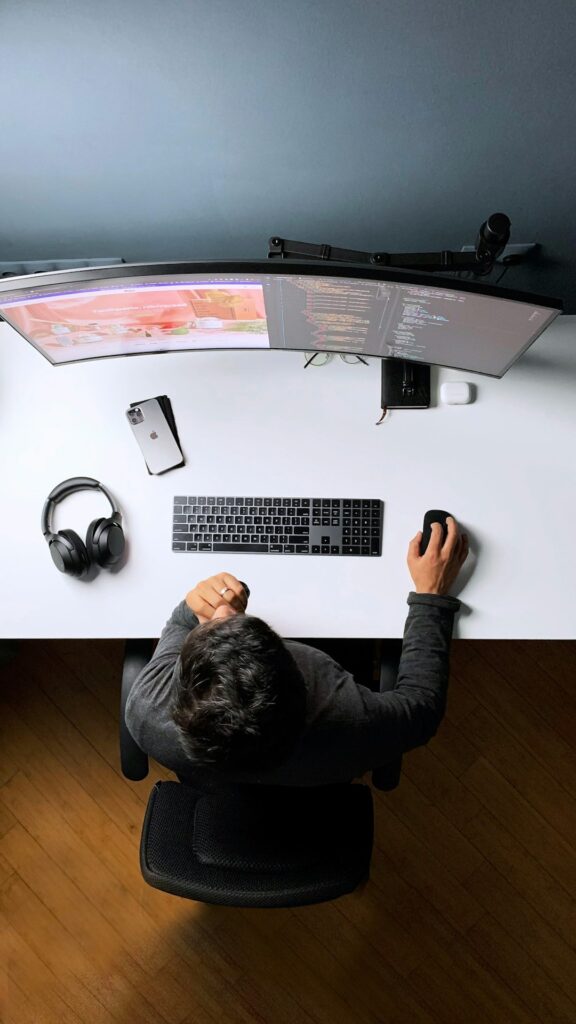
What makes a workspace easier on the spine?
A spine-friendly workspace supports a neutral posture, allows regular movement, and keeps frequently used items within easy reach. The goal is not to sit perfectly still or force the body into one rigid position. It is to reduce unnecessary strain while making comfortable movement easier throughout the day.
A neutral working posture generally means:
- The head is balanced over the shoulders rather than pushed forward.
- The shoulders remain relaxed instead of lifted or rounded.
- The elbows stay close to the body, usually bent near a right angle.
- The lower back is supported without being tightly pressed into a fixed position.
- The hips are level with, or slightly higher than, the knees.
- Both feet rest comfortably on the floor or on a stable footrest.
No chair or desk can prevent every ache. However, a well-arranged workspace can reduce the repeated reaching, twisting, leaning, and prolonged positioning that often contribute to neck, shoulder, and back discomfort.
How should a desk and chair be adjusted?
Start with the chair, then adjust the desk, screen, and keyboard around the body. A chair that is too high, too low, or too deep can make every other adjustment less effective.
Set the seat height so the feet are supported and the knees are roughly level with the hips. If the feet do not reach the floor, use a firm footrest rather than allowing the legs to dangle. The edge of the seat should not press sharply behind the knees.
The backrest should support the natural curve of the lower back without forcing the torso forward. A rolled towel or small cushion may help if the chair lacks lower-back support, but it should not create pressure or make the seat feel cramped.
Armrests can be useful when they allow the shoulders to relax. If they push the shoulders upward or prevent the chair from moving close enough to the desk, lower them or avoid using them. A chair that rolls easily on the floor can also reduce twisting and reaching.
Desk height is often harder to change. If the work surface is too high, the shoulders may creep upward and the wrists may bend. If it is too low, the worker may lean forward. A keyboard tray, monitor riser, or adjustable desk can help, but simple changes such as a stable platform under a monitor may also improve alignment.
Where should the monitor go?
The main monitor should be directly in front of the user, not angled far to one side. Place it close enough that reading does not require leaning forward, but not so close that the eyes feel strained.
For many adults, the top edge of the screen sits near eye level, with the center of the display slightly below eye height. The exact position depends on vision needs, screen size, and whether the person wears bifocals or progressive lenses. Someone who frequently looks down through the lower portion of corrective lenses may need the monitor positioned somewhat lower to avoid repeatedly tilting the head back.
A laptop usually creates a compromise: the screen is low enough to encourage neck bending, while the keyboard is too high when the screen is raised. For regular laptop work, an external keyboard and mouse allow the screen to be elevated while keeping the hands and shoulders in a more comfortable position.
People who use two monitors should place the screen used most often directly ahead. If both are used equally, position them together so the body does not repeatedly rotate in one direction. Turning the entire chair or torso is less stressful than repeatedly twisting only the neck.
How can keyboard and mouse placement reduce strain?
Keep the keyboard and mouse close enough that the elbows remain near the sides. Reaching forward for a mouse may seem minor, but repeated reaching can increase tension through the shoulder and upper back.
The wrists should stay relatively straight rather than sharply bent upward or sideways. Avoid resting the wrists heavily on a hard desk edge while typing. A soft wrist support may be comfortable during pauses, but active typing should come mainly from the hands and fingers rather than pressing the wrists into the support.
Use keyboard shortcuts when practical, especially for tasks that require frequent mouse movement. Alternate hands for less demanding mouse tasks if that feels natural, but do not force a change that creates new discomfort.
Keep phones, notebooks, and other commonly used items within a comfortable reach. Rarely used equipment can be placed farther away, provided retrieving it does not require sudden twisting or lifting from an awkward position.
How often should someone move during the workday?
Changing position regularly is more useful than trying to maintain a flawless posture for hours. Even a well-adjusted chair can become uncomfortable when the body remains still.
Every 20 to 30 minutes, take a brief movement pause. Stand, walk a short distance, roll the shoulders gently, or look across the room to relax the eyes. Longer breaks can include light movement such as walking, easy stretching, or household tasks.
A sit-stand arrangement can help, but standing is not automatically better than sitting. During standing work, keep the screen and keyboard at a height that avoids shrugging or leaning. Shift weight between the feet, use a supportive floor surface, and avoid locking the knees.
For remote workers in Plattsburgh, seasonal routines can affect movement. Cold weather may encourage longer periods indoors, while winter clothing can make a home workstation feel more restrictive. A bulky sweater, coat, or blanket may push the shoulders forward or limit hip movement. Removing extra layers before extended desk work and keeping walkways clear for short movement breaks can make indoor work more comfortable.

What common workspace habits cause problems?
Several habits place more stress on the spine than people realize:
- Working from a couch with the laptop on the lap for several hours.
- Using a phone between the ear and shoulder.
- Looking down at a laptop or phone without changing position.
- Keeping a monitor off to one side.
- Sitting on a wallet, thick object, or uneven cushion.
- Crossing the legs in the same direction for long periods.
- Reaching repeatedly for a printer, notebook, or second screen.
- Working at a kitchen counter that is too high for comfortable keyboard use.
- Continuing through increasing pain because the posture appears correct.
A couch may be suitable for short tasks, but its soft cushions often allow the pelvis to roll backward and the head to drift forward. If a couch is the only available option, place the screen at a workable height, support the feet, and limit the duration before changing positions.
How should a workspace be adapted for different body sizes?
There is no universal desk height or chair setting. A setup that works for one household member may be uncomfortable for another.
Shorter users may need a footrest, a shallower chair position, or a lower keyboard surface. Taller users may need additional legroom, a higher work surface, or a monitor that can be raised without forcing the shoulders upward. Children and teenagers should not be expected to use adult furniture without adjustment.
The useful test is simple: the feet should be supported, the shoulders should be relaxed, the screen should be readable without leaning forward, and the hands should reach the keyboard without excessive wrist bending.
When does discomfort need more attention?
Mild stiffness that improves after changing position is often a sign that the workspace or work habits need adjustment. Persistent or worsening symptoms deserve more careful evaluation, particularly when discomfort interferes with sleep, walking, work, or normal household activities.
Prompt medical attention is appropriate for back or neck symptoms accompanied by significant weakness, loss of bladder or bowel control, numbness in the groin area, unexplained fever, serious injury, or sudden severe pain. These warning signs are not simply workspace problems.
For ordinary desk-related discomfort, begin with one or two changes rather than replacing everything at once. Adjust the chair, raise or lower the screen, move the keyboard closer, and add brief movement breaks. Notice which changes improve comfort over several days, then refine the setup based on actual use rather than appearance alone.